Product6 min read
Two taps, mid-queue: designing the counter console
The counter is where loyalty programs die. Here is how the staff console handles scanning, search, enrolment and mistakes without slowing the line.
Every decision in the staff console comes from one scene. It is Saturday morning. There are six people in the queue. The person at the front wants a stamp. Whatever the software asks of the staff member right now has to be faster than reaching for a hole punch.
That scene rules out most of what a loyalty app normally does. No dashboard on the way in. No menu to navigate. No “are you sure?” on the common path. The console is one screen, and the screen is mostly a search box.
Finding the customer
The customer’s card carries a QR code. Tap Scan card QR, point the phone at their screen, and the card opens. Scanning runs in the browser using the phone’s camera, on iPhone and Android, with nothing to install.
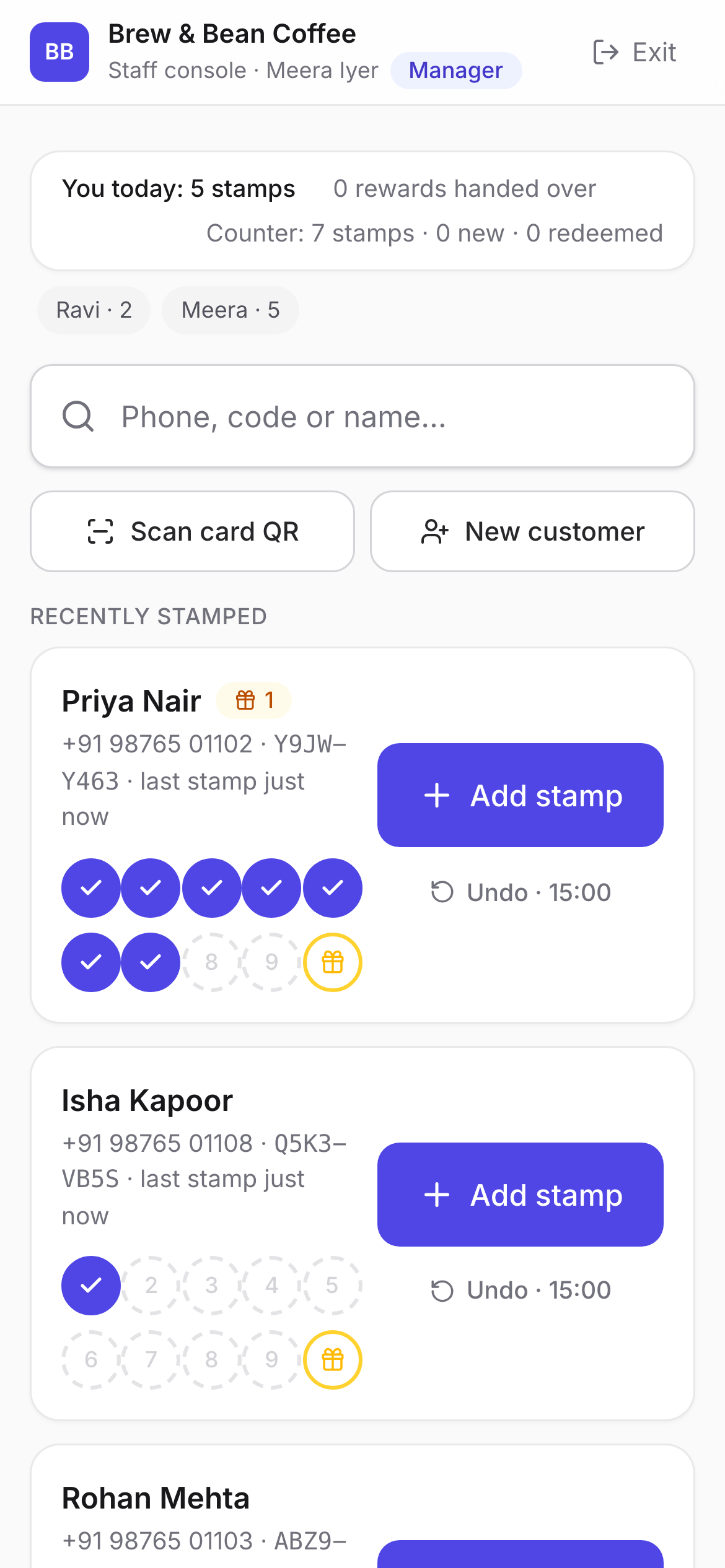
When scanning is awkward, because the customer has their phone in a bag or the light is bad, the same search box takes a phone number, a name, or the short customer code printed on the card. Before you have typed anything, it shows the people stamped most recently, which covers the regular who was just in yesterday.
Adding the stamp
On the customer’s card there is one large button: Add stamp. Tapping it records the stamp, animates the grid, and pushes the update to the customer’s own phone within a couple of seconds. If they have the card in Apple Wallet or Google Wallet, the pass updates as well.
There is a daily cap on stamps per customer, set by the owner, so a bored teenager cannot give their friend a free coffee by tapping ten times. The console shows a message when the cap is hit rather than silently ignoring the tap.
Undoing a mistake
People tap the wrong customer. It happens more on a busy morning, exactly when there is no time to phone the manager. So the console handles it in place: for 60 seconds after stamping, an Undo button with a countdown replaces the stamp button.
Staff can undo only their own most recent stamp, and only inside that minute. Managers get 15 minutes and can undo any recent stamp at the counter. Both limits are deliberate: long enough to fix a slip, short enough that undo cannot become a way of quietly editing history. The next post explains what an undo actually does to the record.
Enrolling someone new
The normal way to join is for the customer to scan the standee and verify their number. But some customers would rather you did it, and some just want their first stamp now. Tap New customer, type their phone number or email, optionally their name, and they are enrolled. Leave Add their first stamp right away ticked and the stamp goes on in the same motion.
Nobody is sent a code at the counter. The staff member is vouching for the number, and the customer claims the card the first time they sign in with it. Marketing consent is recorded only if the customer explicitly says yes, and the console never pre-ticks it.
Handing over a reward
When a card fills, a Reward unlocked banner appears with a Hand over now button, and a fresh card starts underneath so the next visit still earns a stamp. The confirmation shows the customer’s name, the reward and the voucher code, so a hand-over is a deliberate second tap rather than a side effect of the stamp.
Rewards that were not handed over on the spot stay waiting. Any later visit shows a Redeem button on the card, and the owner sees the same voucher under Waiting on their rewards page.
The things that are missing on purpose
- No sign-up for staff. The owner or a manager creates the login with an email and a password. There is nothing for a new hire to register.
- No settings. Brand colour, reward text and the daily cap live in the owner’s panel. The console shows the card as the customer sees it and nothing more.
- No numbers except today’s. The strip at the top shows your stamps and hand-overs today. Managers also see the whole counter and a per-teammate split. Trends and history belong to the owner.